
12 minute read
Image: SMA Creative Department. Wordman character courtesy of Wordman Speaks.
December 22, 2025
Choosing the Best Image Formats for Proposal Documents
For some time, I have been using SVG images for artwork in my Word-based proposals rather than PNG or EMF images. The choice of image format affects not just visual quality, but also file size, document performance, and whether text in your graphics is searchable in the final PDF. But is it the best format for ALL proposal artwork?
By Dick Eassom, CF APMP Fellow (aka Wordman)
To answer that question, we’ll look at the common image file formats and the pros and cons for their use as proposal artwork. I’m going to assume we’re all using Microsoft 365 as our proposal development environment.
Types of Image Formats
Fundamentally, there are only two types of image formats:
- Raster (aka bitmap) images, each composed of a rectangular grid of colored pixels. Each pixel has values of Red, Green, and Blue (RGB) ranging from 0 to 255, providing for 16,777,216 different colors. Some formats allow each pixel to also have a transparency value from 0 to 255 in a so-called Alpha channel (RGBA).
- Vector images, each composed of RGB-colored shapes, lines, and text. Some formats allow for RGBA transparency, and some can also contain raster components.
Understanding this distinction is key to choosing the right image format type for proposal artwork.
Raster Formats
The common raster file formats are JPG, PNG, and GIF, with a few older ones such as BMP and TIFF, and some new ones such as WEBP and HEIF. There are pros and cons for the common formats, and you need to understand what each one is good for:
- JPG (“jay-peg”) or JPEG is an acronym for the Joint Photographic Experts Group who created its compression algorithm in 1992, and its name gives away it best use: for photographs. To make the image file size smaller, it uses a so-called “lossy” compression algorithm that is ideal for photographs, which do not generally contain large areas of solid color. Unfortunately, each time a JPG is opened and saved in an editing application, the compression is reapplied. This can lead to “artifacts” appearing on areas of solid color, so it is not an ideal format for logos and other non-photographic images such as proposal artwork. If you’ve ever seen dirty blobs on the white background of a company logo, then you’ve seen the results of repeated compression. Also, JPG images cannot handle any transparency.
- PNG (“ping”) is an acronym for Portable Network Graphics, and the format is a good workhorse for all raster images. First released in 1996, its compression algorithm is lossless, so it does not create the issues that repeated compression can cause with JPG images. PNG images can also handle RGBA transparency. This is an ideal format for images where you want to have, say, an underlying color gradually appearing from under a drop shadow. It is great for logos, but compared to JPG, the file size will be larger, especially for those images with transparency.
- GIF (“gif” or “jif”—no, I’m not getting into that debate!) is an acronym for Graphics Interchange Format, first released in 1987. Unlike JPG and PNG, each pixel is mapped to a color from a table of 256 RGB colors. It can handle transparency, but only by defining one of the colors in the table as transparent, i.e., all the pixels of that color are fully transparent, and the pixels of all other colors are opaque. It is ideal for logos and icons, but has generally been superseded by the PNG format (which was designed to replace it). It can provide animation, but this would only be useful in PowerPoint presentations.
All raster images have a pixels-per-inch property. For good quality images, you should aim for a minimum of 150 pixels per inch to 300 pixels per inch. Below that, the images will look fuzzy; above that the images will have an unnecessarily large file size.
So, an image intended to be half the width of the proposal page, say, 3 inches wide, the horizontal size should be a minimum of 450 pixels. Note that doubling the resolution from 150 to 300 pixels per inch quadruples the number of pixels overall. Even allowing for compression, that makes for a bigger file size. Unnecessarily large image files will slow down your PC, and multiple large image files in a Word document will really slow it down, affecting loading and viewing performance. You must size raster images correctly before inserting them into Word, since Word will not scale them.
Tools for editing raster images include the industry standard Adobe Photoshop, Corel’s PaintShop Pro (unfortunately being discontinued after the 2024 version), and the free GIMP (GNU Image Manipulation Program).
Vector Formats
Vector formats approach images very differently, which gives them important advantages for diagrams and other non-photographic artwork. The most common vector image file formats are SVG, AI, EPS, PDF, and EMF, with older formats such as WMF. Of these, only SVG and EMF/WMF can be directly inserted in Office documents:
- SVG is the acronym for Scalable Vector Graphics, an XML (eXtensible Markup Language) format that was first developed in 1999. Originally developed for web graphics, Microsoft finally introduced support for it in Office 2016. SVG image files can include embedded raster images, making them a potential candidate for the “only image file format you’ll ever need.” SVG images are ideal for organization charts, flow charts, etc. All shapes and lines in the image support all RGB colors and full RGBA transparency, including drop shadows. Gradients are limited to linear (varying color along a straight line) and radial (varying color outwards from a central point). Since XML files are text-based, this is an open format, not locked to a particular owner.
- EMF is the acronym for Extended Metafile, a Microsoft vector image format released in 1992 with Windows NT 3.1, as a 32-bit format replacing the old 16-bit WMF (Windows Metafile) format released in 1988. Unlike SVG, the EMF file format is proprietary to Microsoft. EMF supports all RGB colors but not RGBA transparency, so your drop shadows will not look as good as other formats. Like SVG, it can embed raster images. An EMF image will have a much larger file size than the same image in SVG format.
Compared to raster images, pixels per inch are not a concern with vector images, since they can be scaled up and down without loss of resolution. Also, any text in the images remains searchable when you save the proposal Word document to a PDF, for submission to your customer, which can significantly improve evaluator keyword searches (more on the nuances of that later).
Unlike most of the raster file formats, Microsoft does not provide thumbnails for SVG and EMF/WMF images in Windows Explorer. This can be rectified using free downloadable tools such as WMFPreview for EMF/WMF files, and Microsoft’s PowerToys for SVG. (I recommend PowerToys for some of the other tools it provides, such as the Color Picker, the quick Image Resizer, PowerRename, and the Screen Ruler to name but a few.)
Tools for creating and editing vector images include Adobe Illustrator, Microsoft PowerPoint, and the free Inkscape. I recommend the latter as it can import many vector formats (such as PDF), allow you to edit them, and then save as SVG. And it’s free…
Note that since SVG images are text-based, they can contain redundant and unnecessary content: a good SVG optimizer such as SVGOMG.net can trim their file sizes down without any loss of fidelity. I have also found that Office will not display some inserted SVG images unless I run them through an optimizer first—I’m not sure why this is, since the original SVG files displayed correctly in other applications, e.g., Edge browser.
In short, EMF offers Office compatibility, while SVG offers superior visual fidelity and flexibility. However, there are other nuances…
SVG Images in Office Documents
File size and performance are practical concerns in large proposal documents. I discovered an odd thing regarding file size while creating some sample images while researching this article. Let’s say the file size of your JPG image is 94 KB. A blank Word document has a file size of 13 KB. However, adding your image into the document does not produce a Word document with a file size that is 107 KB. The resulting files size is actually 86 KB, lower than the sum of the two files, because of the ZIP compression algorithm (all Office documents are just ZIP files with custom file extensions). I tested this with several different graphics, and the result was always a file smaller than the sum of its parts—except when I inserted an SVG image in the document. Then it got much larger.
It turns out that Microsoft were concerned about backward compatibility when they added SVG support to Office, so the applications create a PNG copy of the SVG image and store it in the document file. In Figure 1, you can see from the following two screenshots from 7-Zip (another free app I recommend!) showing the image files embedded in a Word document how the PNG “backup” added 70 KB to the file size:
Figure 1. The Hidden PNG Backup to SVG Images in Office.
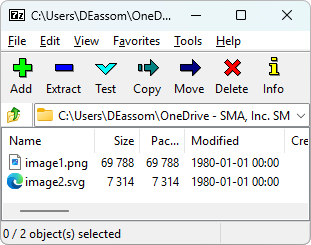
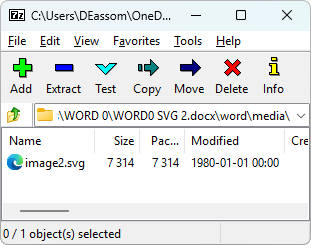
You can open the Word document up in, say, 7-Zip and delete the PNG file (as seen in the second image). But, since (a) you would have to be aware of which image is which so you don’t inadvertently delete the wrong one (they’re in a simple numerical sequence), and since (b) it makes no difference to the file size of a PDF created from this Word document, there is no point taking this step prior to submission. Bottom line: Inserting SVGs into Word increases document size because Office stores a hidden PNG copy, even though this provides no benefit in the final PDF.
Searchable Text Artwork in PDFs
One goal would be to have the text labels in your proposal artwork searchable in the final PDF you submit to your customer. Clearly, using raster formats for artwork will not work, although you could use Adobe Acrobat Pro’s optical character recognition (OCR) tool to turn the artwork text into searchable text. But the far better approach is to use vector artwork which contains actual text.
You can create your final PDFs from your Word documents in several ways, but they don’t all work the same. Only EMF images will produce searchable text using any of the methods. To get searchable text with SVG images, you must use Adobe’s Acrobat Pro add-in for Office. If searchable artwork text matters—and in many evaluations it does—the way you create your PDF is just as important as the image format you use, as shown in Table 1.
Table 1. PDF Creation Methods and Searchable Artwork Text
| Method | EMF? | SVG? |
|---|---|---|
| File > Save as > PDF (*.pdf) | Yes | No |
| File > Print > Microsoft Print to PDF | Yes | No |
| File > Export > Create PDF/XPS Document | Yes | No |
| File > Save as Adobe PDF | Yes | Yes |
| File > Print > Adobe PDF | Yes | Yes |
| File > Export > Create Adobe PDF | Yes | Yes |
Editing EMF and SVG Images in Office
A word of caution. PowerPoint is a great tool for creating proposal artwork and saving it as either an EMF or SVG file: just select the artwork, right-click and select Save as Picture… Similarly, you can insert, or drag and drop, EMF and SVG images into PowerPoint as elements of new artwork. To edit an inserted vector image, you can right-click and select Ungroup. Office converts the image into Office Drawing Objects.
However, you will get different results with each format. SVG images generally ungroup as you would expect (you may have to set the font size) allowing you to edit or delete elements. Figure 2 below shows an SVG image inserted into PowerPoint with an ungrouped copy below it. I did have to fix the font size in this case, but I am easily able to select each element of the original art. (This proposal art piece was originally created in PowerPoint using PowerPoint shapes with some SVG icons, and then saved as an SVG image for use in a Word-based proposal.)
Figure 2. SVG image inserted into PowerPoint, and its ungrouped version.
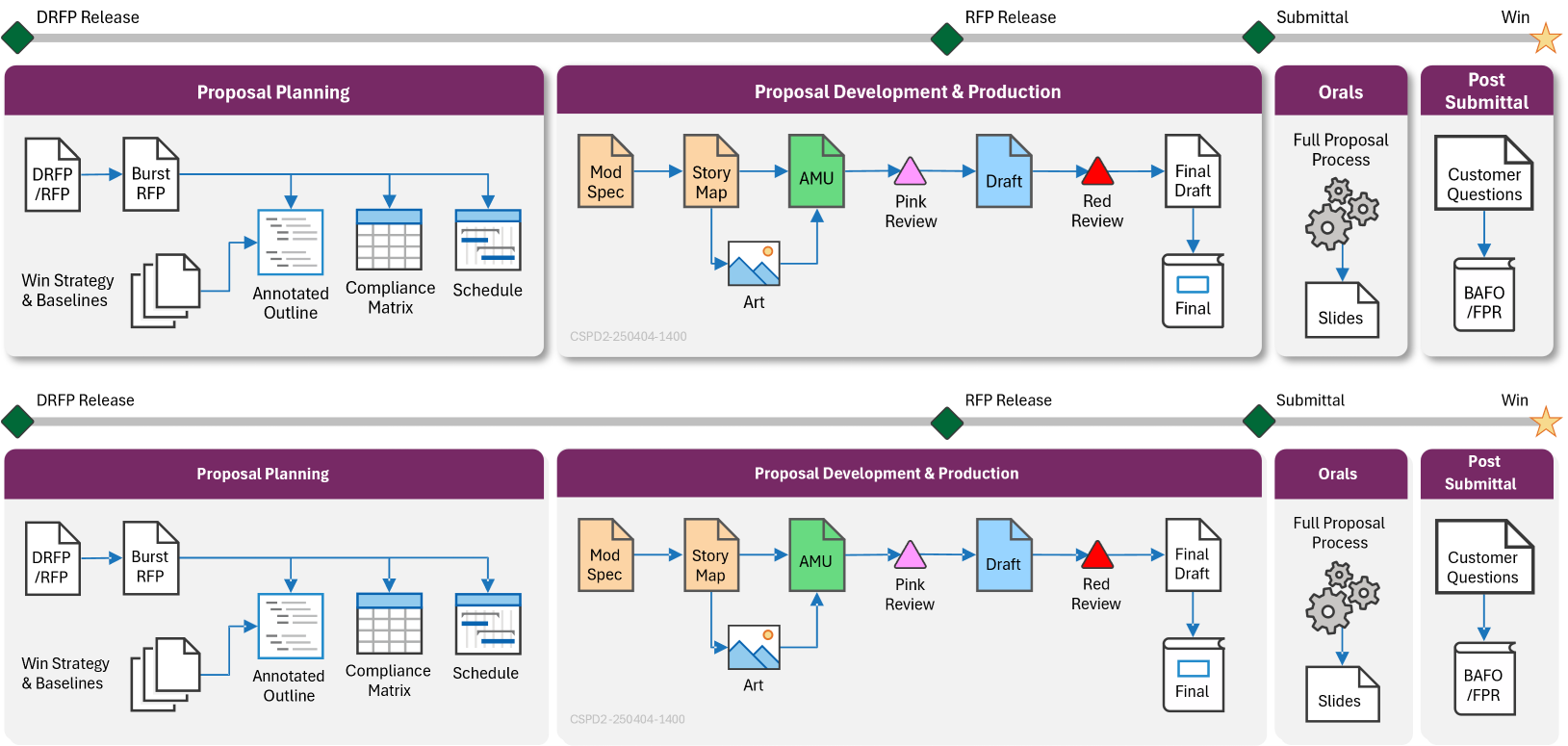
In my experience, EMF images do not ungroup well and require considerable work to be able to use them. Figure 3 shows the same artwork piece that had been saved as an EMF picture from PowerPoint, then reinserted into PowerPoint and ungrouped. A lot of information and styling has been lost, and would have to be rebuilt to be of any use.
Figure 3. EMF image inserted into PowerPoint, and its ungrouped version.
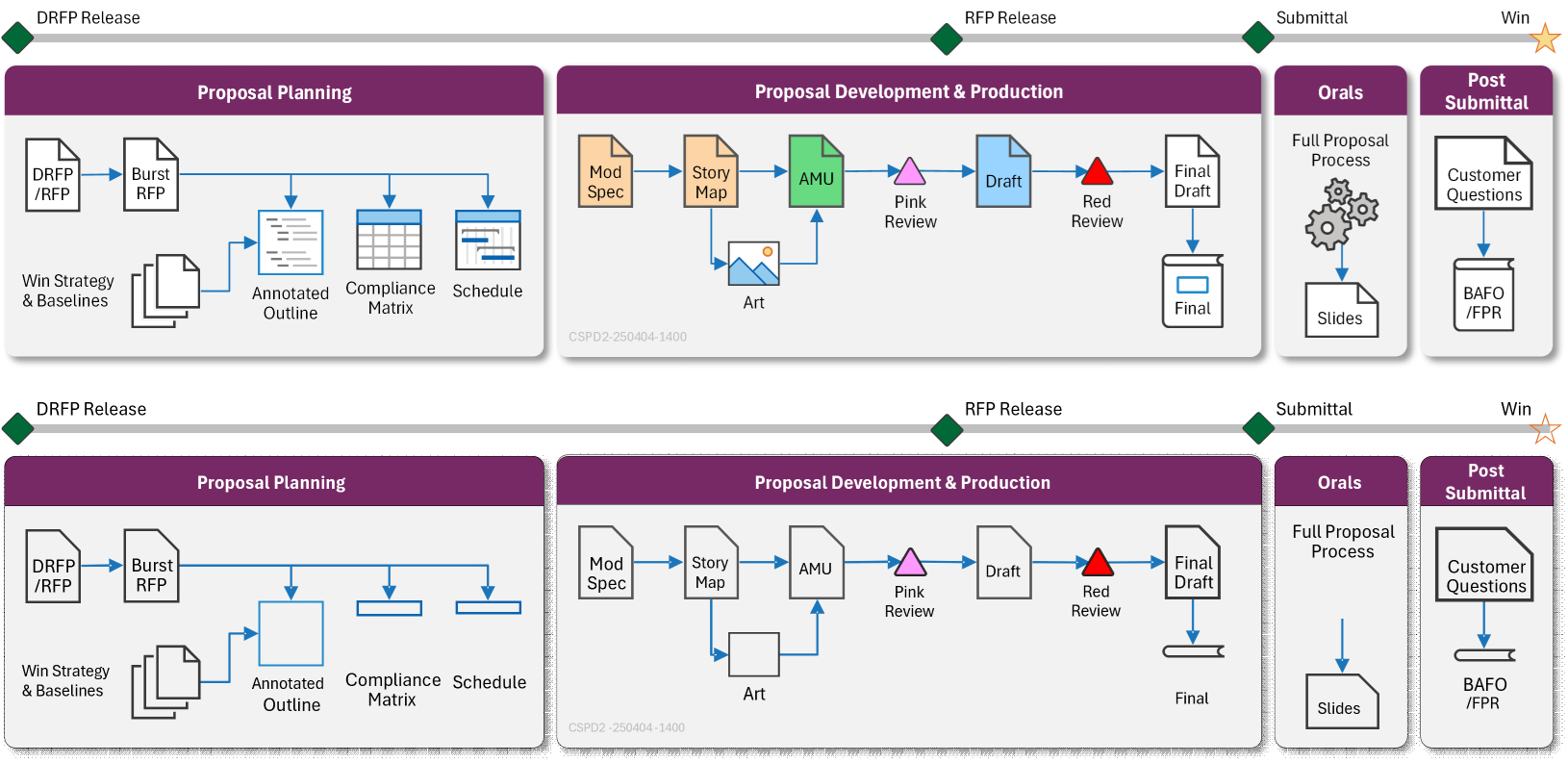
For this reason alone, I stopped saving my proposal artwork from PowerPoint as EMF images, and have been exclusively using the SVG format for several years.
Is There One Format to Rule Them All?
Unfortunately, no, but I think generally we need only two. My recommendations:
- Photographs: Use JPG images at a minimum of 150 pixels per inch.
- All Other Artwork: Use SVG images.
- Searchable Artwork Text Required in a PDF: Use the Adobe Acrobat Pro add-in for Office.
Choosing the right image format won’t win a proposal by itself, but choosing the wrong one can quietly undermine it.
 |
Dick Eassom, CF APMP Fellow, is SMA’s Vice President for Corporate Support, and a certified Fellow and Founders' Award recipient of the Association of Proposal Management Professionals (APMP). He has led complex proposals worldwide across diverse sectors, supporting high-performing business development teams. |
Posted on December 22, 2025, by
Dick Eassom, CF APMP Fellow, SMA, Inc.