
6 minute read
Image: SMA Inc. Wordman used by permission of Wordman Speaks
February 17, 2026
In a previous article, I described SVG as “the one image file format to rule them all.” SVG scales cleanly, works across platforms, and plays nicely with Office, Adobe, and the web. For many workflows, it really is the most portable image format available. But there is a catch: SVG is portable, but your fonts might not be—and when they aren’t, your carefully aligned graphics can break without warning.
By Dick Eassom, CF APMP Fellow (aka Wordman)
And when fonts are not portable, text inside an SVG can quietly break—stretching, overflowing, or substituting—often at the worst possible moment. This follow-up article explains why that happens, and how to prevent it.
PowerPoint: The Practical SVG Design Tool
Not everyone has Adobe Illustrator. In many firms, PowerPoint is the most accessible design tool available to the most people. And surprisingly, it’s a capable one. You can easily build functional yet attractive organization charts, flow charts, process diagrams, infographics, and other proposal artifacts, and then export them as SVG files to build a graphics library for future proposals. PowerPoint + SVG is a practical, low-cost solution for your proposal team.
But there is one critical rule: If your SVG contains text, that text must remain text.
Why Text Must Stay Text
When you insert SVG graphics into Word documents and then convert those documents to PDF using the Adobe Acrobat plugin, the text in the graphics remains searchable. That matters to evaluators looking for keywords in your proposal. If the text in graphics is converted to outlines (vector shapes), it may look identical, but it is no longer searchable, and can increase file size, especially when large amounts of text are outlined.
For proposal libraries, searchable text is often non-negotiable, so converting text to outlines is not an acceptable workaround. (And you can’t do it directly from PowerPoint anyway.) The text must remain text.
The Hidden Problem: Fonts Are Not All Equal
Here’s where things get complicated.
When you design in PowerPoint, you have access to many fonts, including Microsoft’s current default font, Aptos. But not all fonts available in Office are actually installed as Windows system fonts. There are three important categories to understand:
- Windows System Fonts. Located on your PC in C:\Windows\Fonts\, these fonts are visible to all applications—Microsoft Office, Adobe Illustrator and other Windows graphics applications (such as Inkscape), browsers, etc.
- Office Cloud Fonts (e.g., Aptos). These are not like the traditional system fonts above, but are cached locally in a user-specific directory such as C:\Users\[UserName]\AppData\Local\Microsoft\FontCache\4\CloudFonts. Because these fonts are not registered as system fonts, other applications cannot see or use them. They are available for Office applications, but not Adobe or other Windows applications. To most users, Aptos feels like a normal font, but technically, it is not.
- Proprietary Fonts (e.g., Arial Narrow). Some fonts are installed system-wide on your PC but are proprietary, not licensed for embedding, and not consistently available across platforms (especially macOS). This can create a different kind of portability problem.
What Happens When You Open the SVG Elsewhere
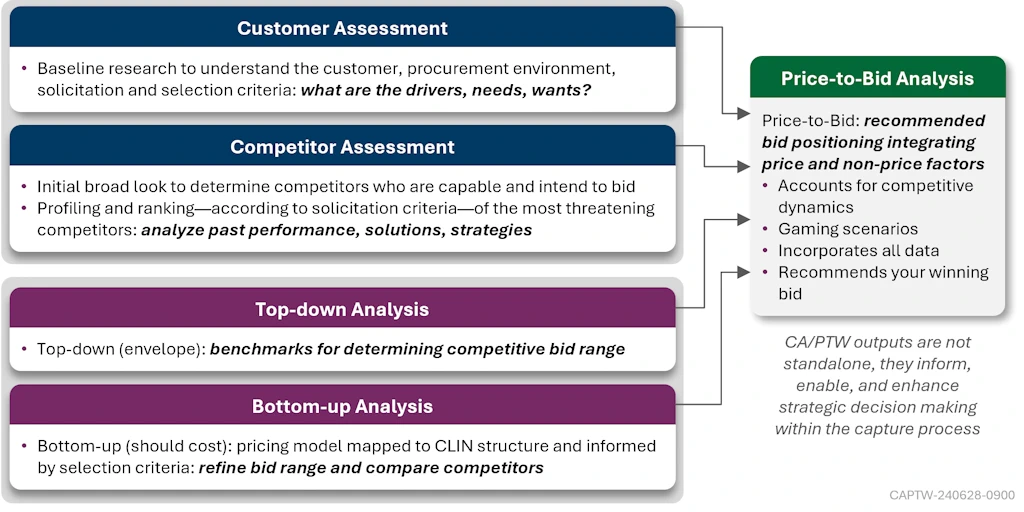
Let’s say you create a diagram in PowerPoint using Aptos and right-click, Save as Picture…, SVG. Here’s a graphic of SMA’s Competitive Assessment and Price-to-Win (CA/PTW) process. In PowerPoint, everything looks perfect:
Now open that SVG in Adobe Illustrator or the open-source graphics editor, Inkscape:
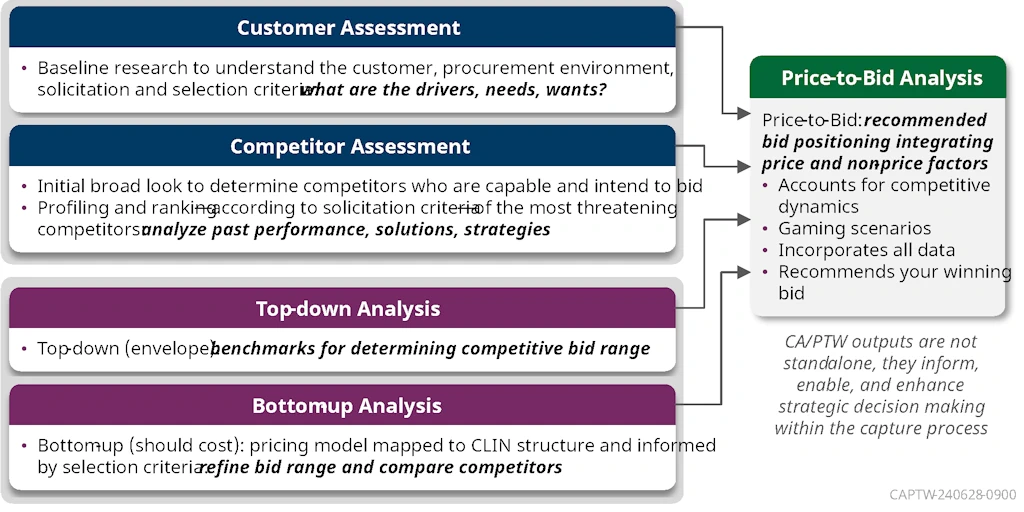
If those applications cannot access Aptos, they substitute a different sans serif font. And here’s the critical detail: different fonts have different character widths. Even small differences in letter spacing and glyph width can cause:
- Text to overflow shapes,
- Line breaks to shift,
- Carefully aligned layouts to break, and
- Labels to extend past bounding boxes.
Everything looked fine—until you tried to edit the SVG outside of Office. The SVG format did not fail: the font portability assumption did.
Why This Is Confusing
Most users assume that if they can see and use a font in PowerPoint, it must be a normal font. But Office Cloud Fonts are cached for Office use only. They are not universally available to the operating system or other design tools. Even Adobe encourages users to rely on licensed Adobe fonts within the Creative Cloud ecosystem. Every platform manages fonts slightly differently.
The SVG format faithfully references a font family name. But if that font is not available, the application must substitute something “similar,” and “similar” is rarely identical. The application substitutes a font based on generic family classification (e.g., sans-serif), not exact metrics. While SVG technically allows fonts to be embedded, Microsoft Office does not reliably honor embedded fonts when importing and ungrouping SVG files.
The Solution: Make Your Fonts as Portable as Your SVGs
If you are building a shared SVG proposal graphic library, you need to standardize on fonts that are:
- Installable on Windows and macOS
- Legally embeddable
- Recognized by Office
- Recognized by Adobe tools
- Supported on the web
- Available in condensed variants if needed
Open, freely licensed font families are ideal for this, and one strong example is Roboto, along with Roboto Condensed. This font family is:
- Free and open (SIL Open Font License)
- Installable on any machine
- Supported in PowerPoint, Word, Illustrator, and InDesign
- Web-friendly
- Includes condensed styles
- Compatible with Acrobat PDF workflows
If all authoring machines have the same open font installed, SVG text remains editable, searchable, stable, and predictable. The key principle is SVG is portable. Your fonts must be portable too. The answer is not simply installing a font, but standardizing on a portable font family for all SVG authoring.
A Practical Recommendation for Teams
If your organization is building an SVG graphics library:
- Select an open font family (e.g., Roboto + Roboto Condensed).
- Install it on all authoring machines (Windows and Mac).
- Avoid cloud-only Office fonts for SVG graphics.
- Avoid proprietary fonts that cannot be redistributed.
- Keep text as text—do not convert to outlines (you can’t do this from PowerPoint anyway, only from Illustrator or Inkscape).
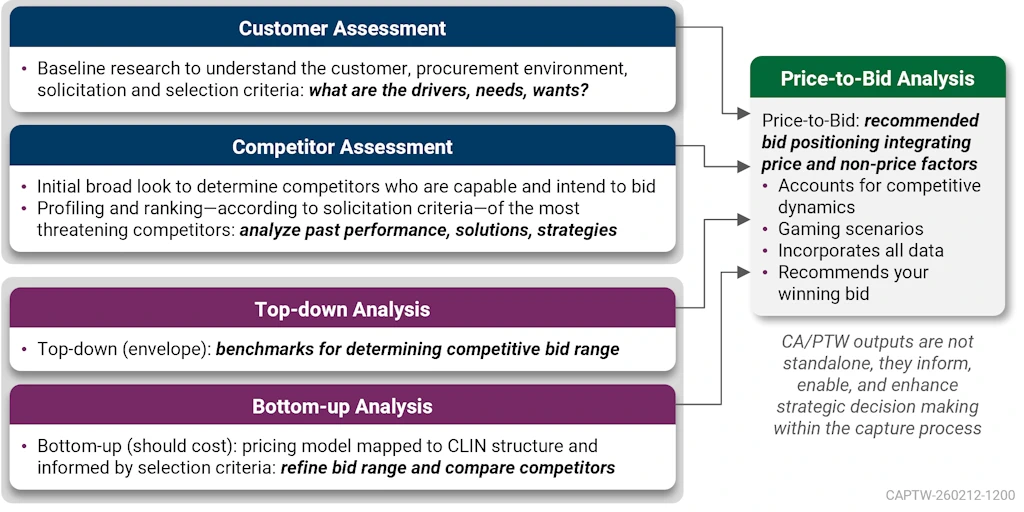
With those steps, SVG becomes what it was meant to be: A single, scalable, portable image format that works across Office, Adobe, and the web without unpleasant surprises. Here’s our SVG graphic, rebuilt in PowerPoint using the Roboto font for all text, and saved as an SVG, alongside that SVG opened in Inkscape—they’re identical!
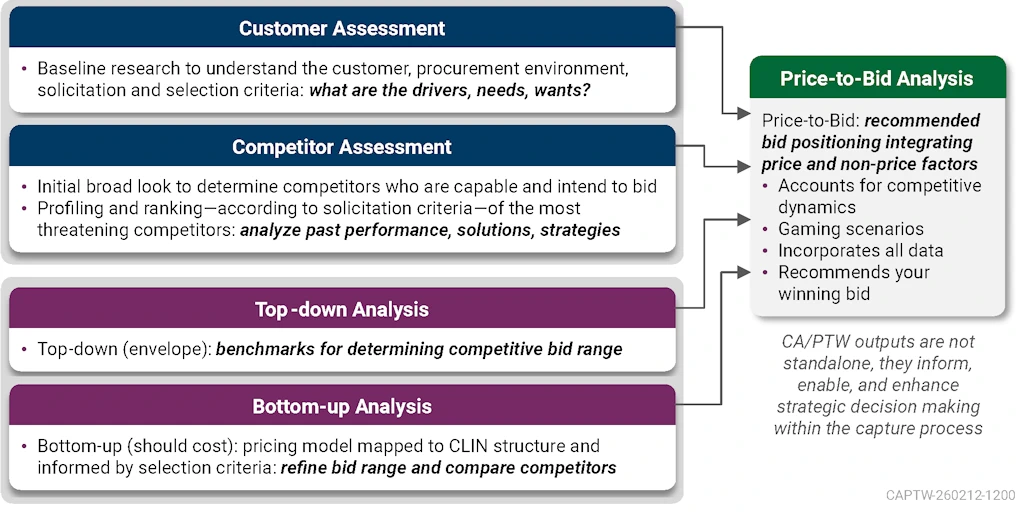
SVG is still a powerful format. But portability is not automatic, it is engineered. And the first engineering decision is choosing portable fonts. Once you understand that, your SVG proposal graphic library really can rule them all!
To download the Roboto font family:
- Roboto: https://fonts.google.com/specimen/Roboto
- Roboto Condensed: https://fonts.google.com/specimen/Roboto+Condensed
- Roboto Serif: https://fonts.google.com/specimen/Roboto+Serif
 |
Dick Eassom, CF APMP Fellow, is SMA’s Vice President for Corporate Support, and a certified Fellow and Founders' Award recipient of the Association of Proposal Management Professionals (APMP). He has led complex proposals worldwide across diverse sectors, supporting high-performing business development teams. |
Posted on February 17, 2026, by
Dick Eassom, CF APMP Fellow, SMA, Inc.